 Magggic
photo to line art
Photo to Line Art Generator
Convert portraits, objects, and references into clean line art and sketch-style AI images.
For personal, product, or property photos, review Magggic's Privacy Policy and Terms before uploading.
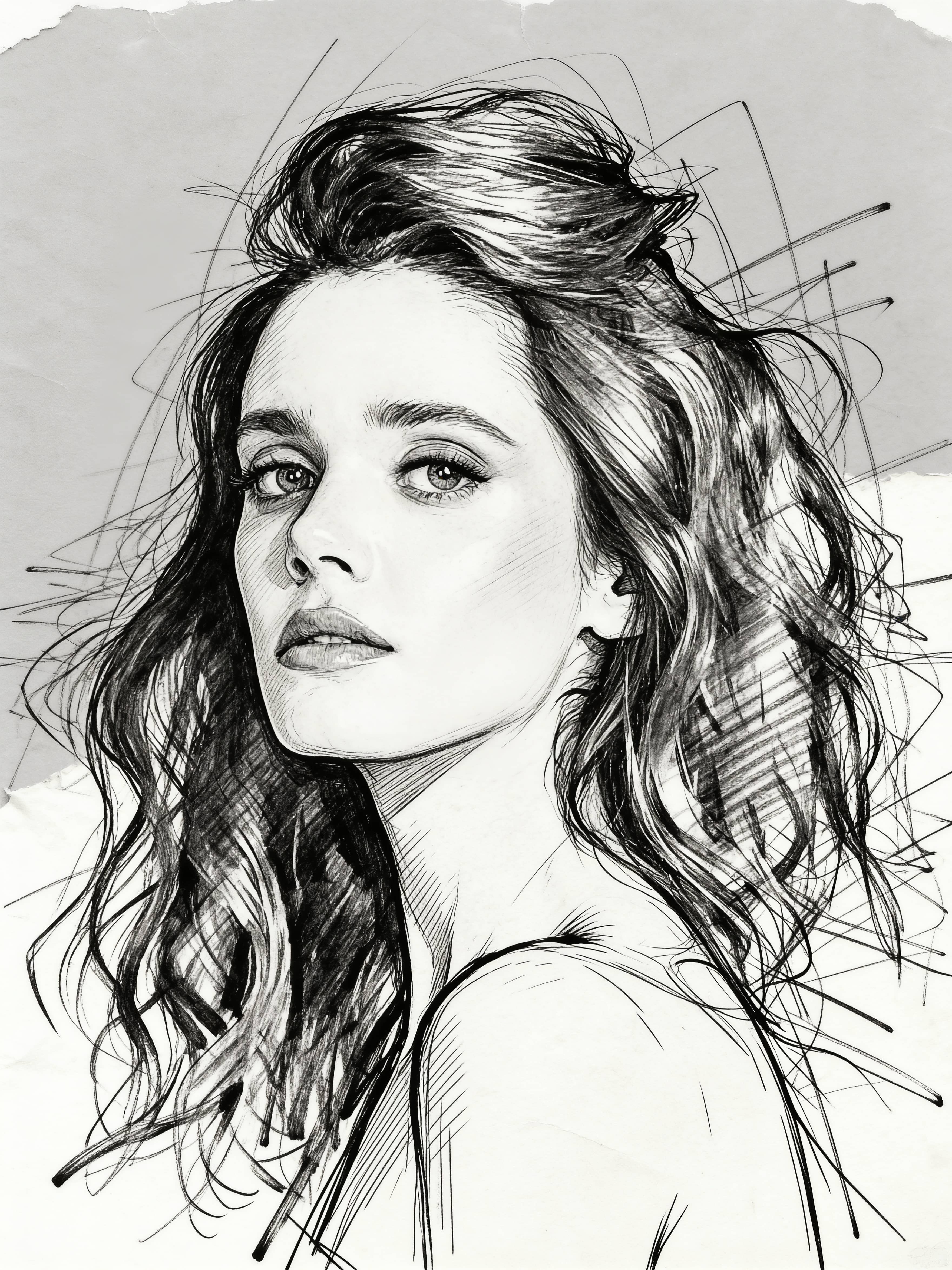
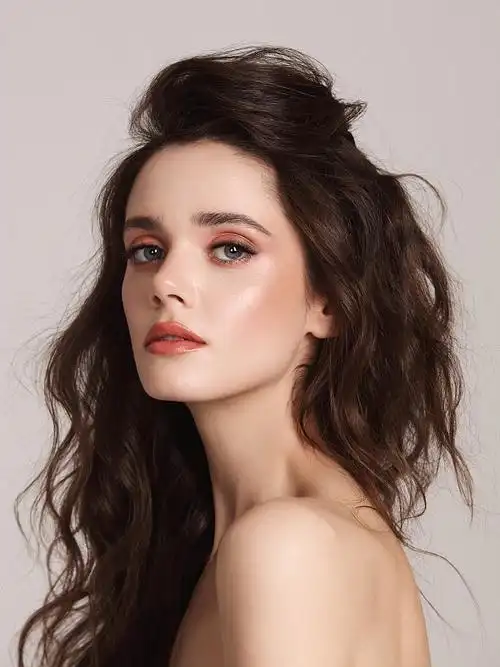
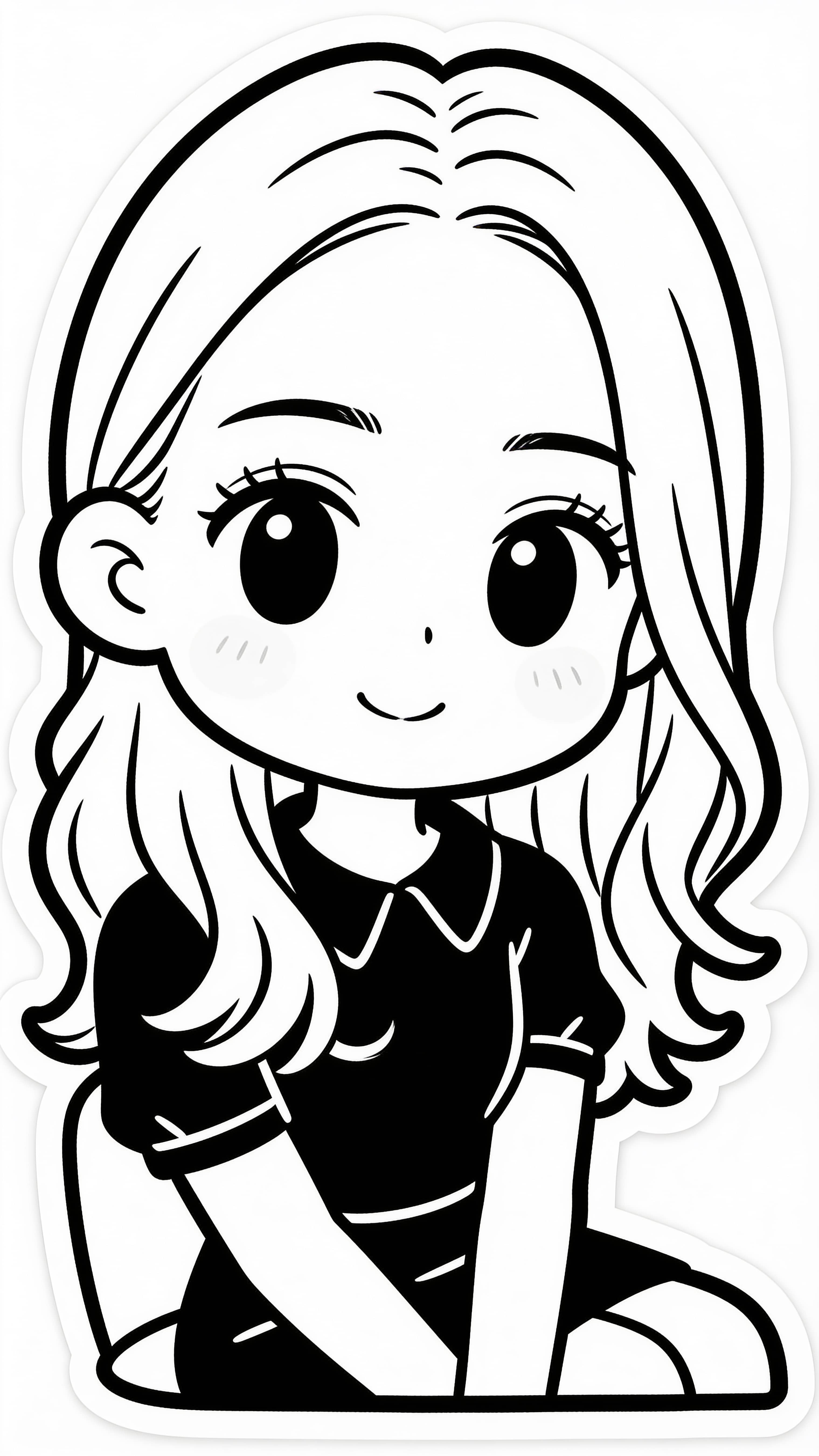
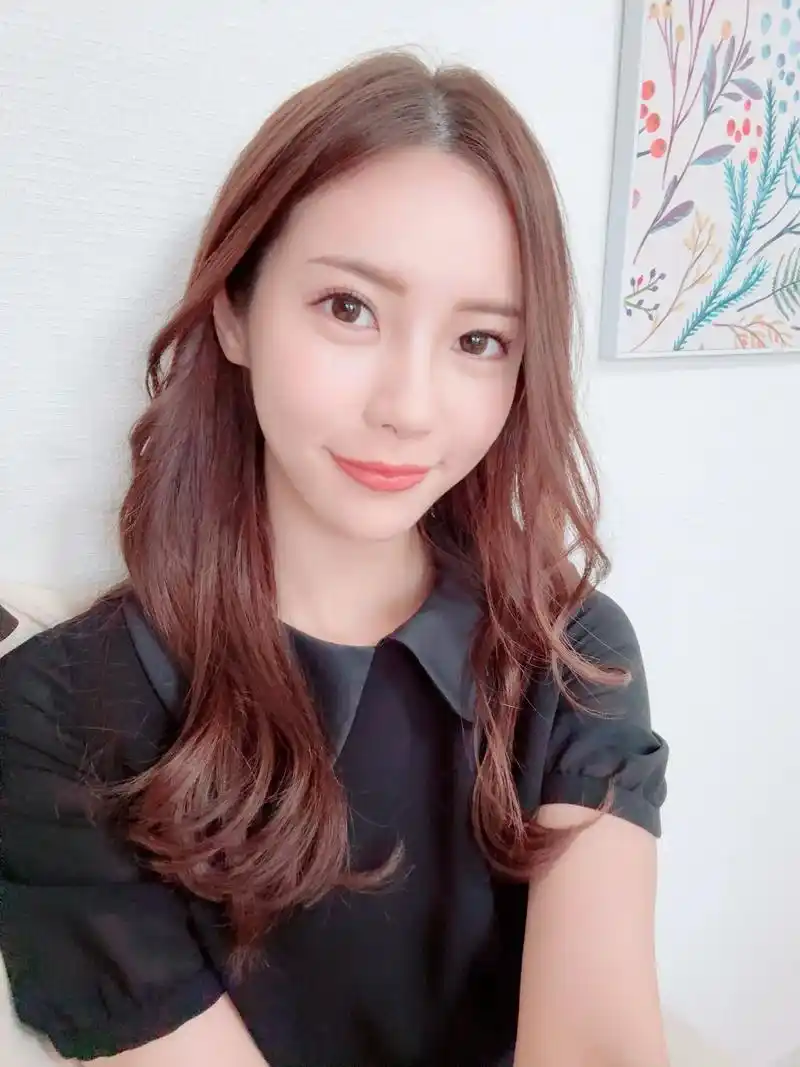
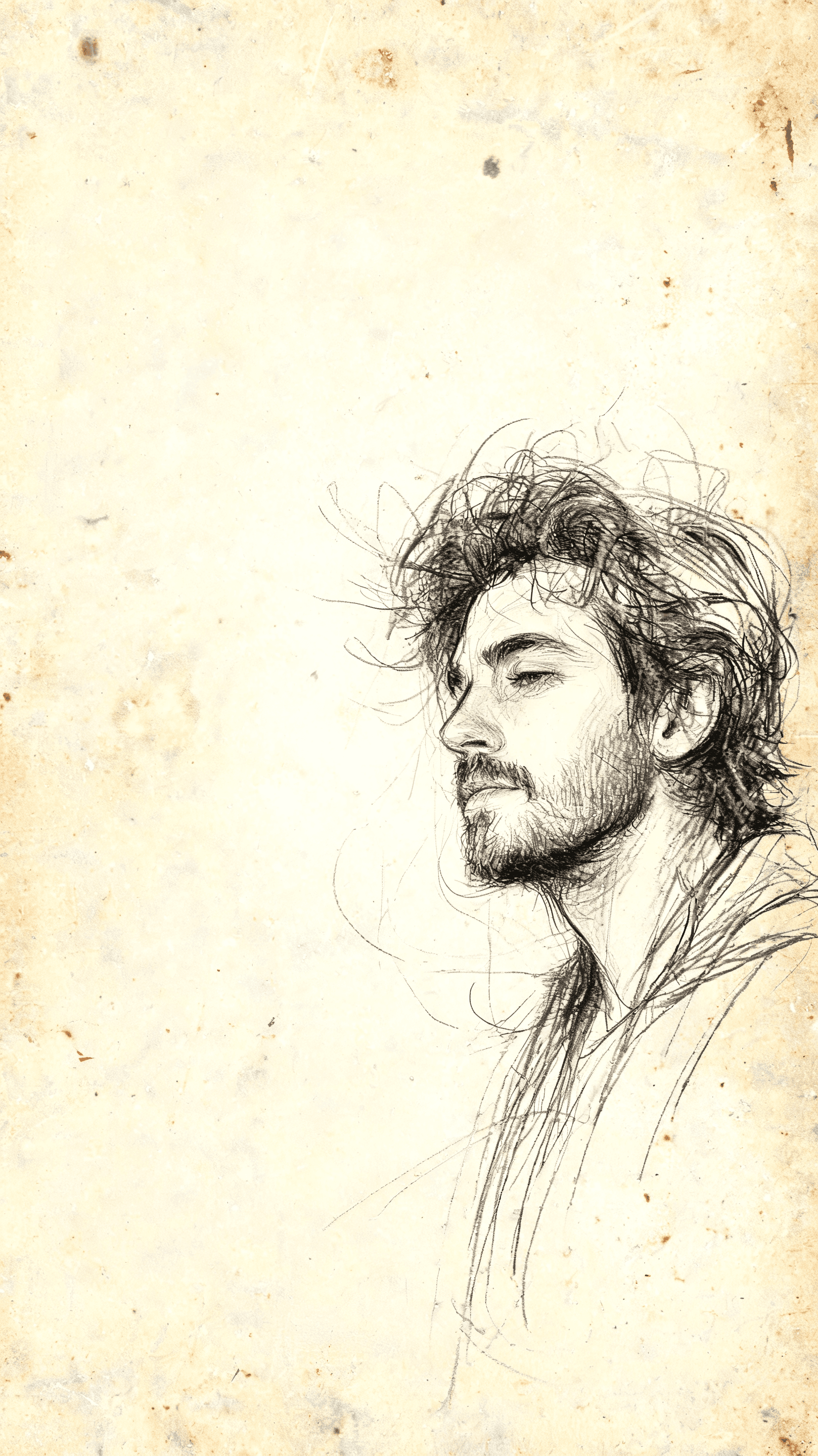
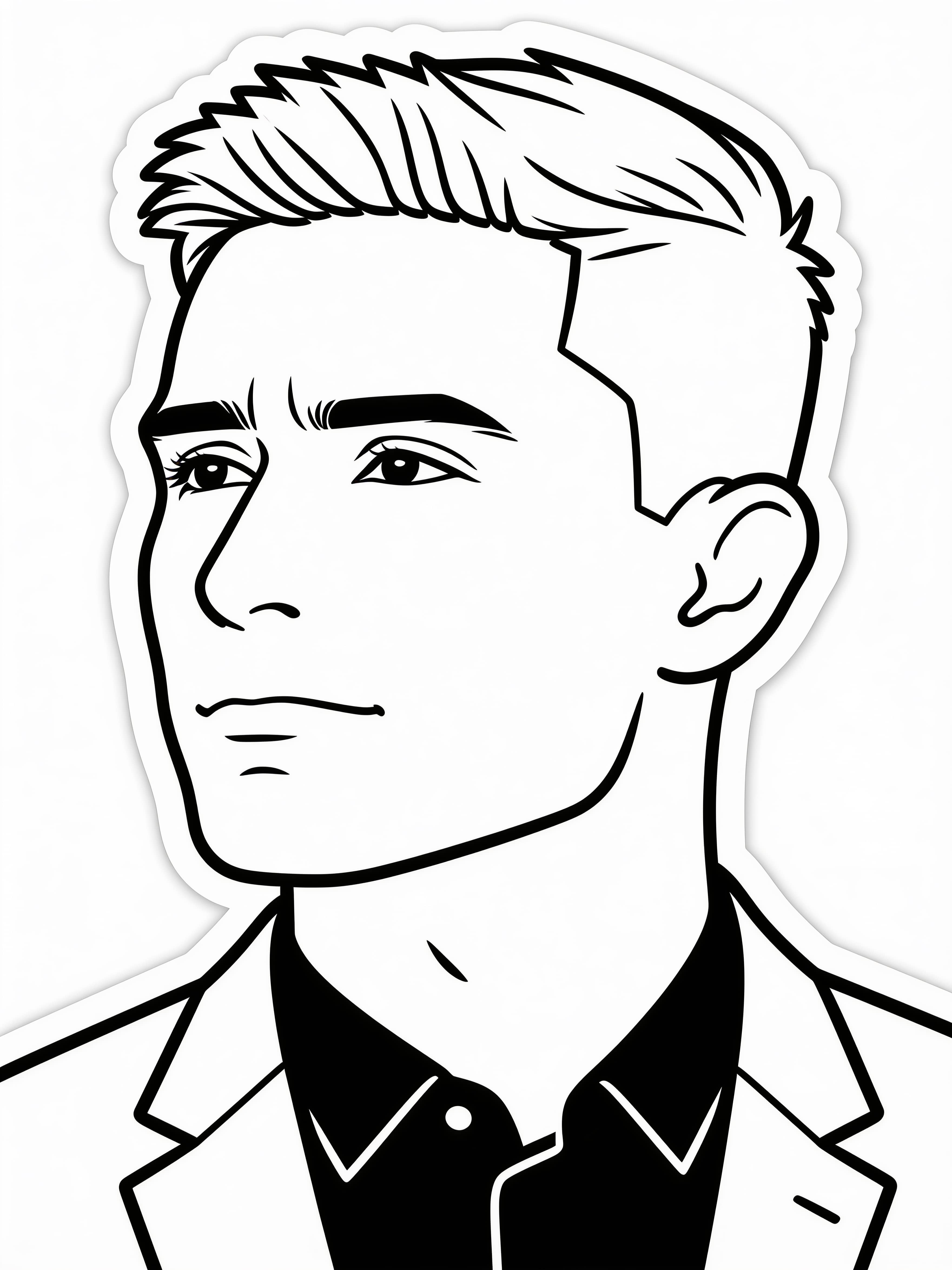

How to convert a photo to line art
- 1Use a source image with clear edges and one main subject for the photo to line art conversion.
- 2Choose black-and-white, minimal shading, contour sketch, or technical outline style.
- 3Mention which details should be preserved and which textures can be simplified.
- 4Regenerate with thinner or thicker lines depending on the final use.
Best photo to line art use cases
- Portrait outlines
- Product outline illustrations
- Tattoo-style references
- Simple sketch assets
Photo to line art prompt formula
- 1Describe the photo subject and what shape details must stay accurate.
- 2Choose line weight, black-and-white style, shading level, and contour treatment.
- 3Ask for a simple background if the outline needs to be reusable.
Photo to line art prompt tips
- Use clean line art, line art generator, precise outlines, minimal shading, and smooth contour lines.
- Ask for high contrast if you want the result to read clearly at small sizes.
- Avoid complex backgrounds when the subject outline or convert photo to line drawing result is the priority.
What a photo to line art generator creates
The photo to line art workflow converts a reference photo into clean outline drawing, contour art, or simple line drawing from photo output. It is most useful when the user wants simplified contours, clear subject shape, and a polished illustration base rather than graphite shading or a rough photo to sketch effect.
Best fit for this page
Users searching photo to line art usually want a photo simplified into usable outlines. The page also covers photo to sketch, line art generator, convert photo to line drawing, and outline drawing from photo intent while keeping the output focused on clean contours and reduced background noise.
Photo to line art vs photo to sketch
Photo to line art searches usually need clean outlines, controlled line weight, and minimal shading. Photo to sketch can be broader and may include pencil texture, graphite shadows, or rough hand-drawn marks. This page stays focused on clean contour output.
- Use photo to line art when the output should have clear outlines and simplified subject shape.
- Use photo to sketch when pencil shading, graphite texture, or rough drawing marks are acceptable.
- Use convert photo to line drawing when the image needs a clean black-and-white drawing style.
- Use outline drawing from photo when product shapes, portraits, tattoos, or diagram-like references need readable edges.
Photo to line art questions
Can I convert a photo into simple line art?
Yes. Use a clear source image and ask for clean outlines, low shading, and a black-and-white illustration style.
Can I use this for product outlines?
Yes. Product photos can be turned into outline illustrations for concepts, diagrams, and visual references.
Is photo to line art different from photo to sketch?
Yes. Line art keeps clean contours and minimal shading. Photo to sketch can include pencil texture, graphite shading, or rougher hand-drawn marks.
Can I make an outline drawing from a photo?
Yes. Use prompts like outline drawing from photo, clean contour, precise line weight, and simple background.