
 Magggic
photo mosaic
Photo Mosaic Generator
Turn photos and ideas into mosaic-style visuals with rich tiles, patterns, and texture.
For personal, product, or property photos, review Magggic's Privacy Policy and Terms before uploading.
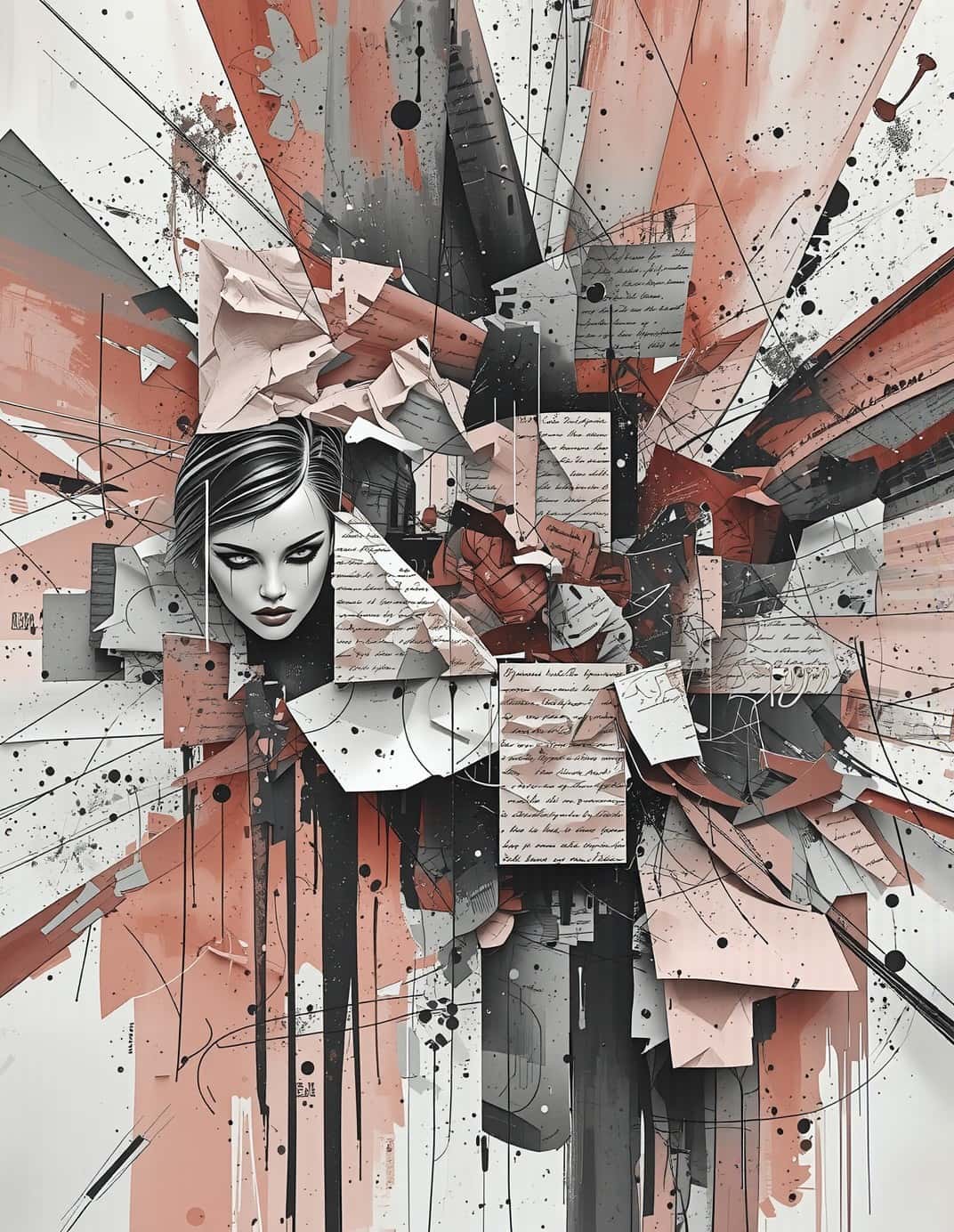


How to make a photo mosaic from an image
- 1Start from a subject with a clear silhouette or strong contrast so the photo mosaic stays readable.
- 2Choose tile size, color palette, and how much detail should stay recognizable in the mosaic picture.
- 3Ask for mosaic texture rather than pixel art or collage if you want a tile-like surface.
- 4Regenerate with smaller or larger tiles depending on whether you need fine detail or bold decorative texture.
Best photo mosaic use cases
- Portrait mosaic effects
- Decorative poster concepts
- Object mosaic art
- Textured social visuals
Photo mosaic prompt formula
- 1Start with a clear subject or photo type.
- 2Specify mosaic material, tile size, and color palette.
- 3State how much of the original silhouette and details must remain recognizable.
Photo mosaic prompt tips
- Use phrases like turn photo into mosaic, small colored tiles, preserve the silhouette, and gallery-quality texture.
- Mention whether the output should feel ceramic, glass, paper, or digital.
- Keep the composition simple so the mosaic pattern does not hide the subject.
What a photo mosaic generator creates
The photo mosaic workflow creates tile-based mosaic pictures while keeping the main subject recognizable. It is useful when the user wants to turn photo into mosaic art, create patterned detail, or use a photo mosaic maker style transformation instead of a literal photo edit or simple collage.
Best fit for this page
Users searching photo mosaic usually want a recognizable image transformed into a mosaic effect with tile texture and strong subject preservation. The page also covers turn photo into mosaic, photo mosaic maker, mosaic picture, and mosaic effect intent while avoiding confusion with photo collage tools.
Photo mosaic vs photo collage
Photo mosaic searches usually want one source image rebuilt with tile-like texture while the subject remains recognizable. Photo collage searches often combine multiple photos or larger cutout blocks. This page stays focused on mosaic effect generation, not broad collage layout.
- Use photo mosaic when one portrait, product, object, or scene should become a tile-based mosaic picture.
- Use photo collage when the goal is arranging several photos together in a grid, scrapbook, or poster layout.
- Use turn photo into mosaic language when the user starts from a real image and wants a recognizable transformation.
- Use mosaic effect prompts when the output should emphasize tile material, color rhythm, and decorative texture.
Photo mosaic questions
Can I make a mosaic from a portrait?
Yes. Use a clear portrait and prompt for tile size, color palette, and how much detail to preserve.
Is this the same as pixel art?
No. Mosaic styles use tile-like pieces, while pixel art usually uses a low-resolution grid aesthetic.
Can I turn a photo into a mosaic?
Yes. Use a clear subject and ask for a photo mosaic effect with tile size, color palette, and how much of the original image should remain recognizable.
Is a photo mosaic the same as a collage?
Not exactly. A collage usually combines larger image pieces or cutouts, while a mosaic picture is built from many small tile-like shapes.